
Guide to EndNote
Endnote is a reference management program that can be used to find, collect, organize and manage references and full texts. The program is integrated with Word and other word processors.
Get started with EndNote
In this guide, we will go through the basics of setting up and using EndNote. Start by watching the video below to get an overview of the core features of EndNote.
Access to EndNote
- If you are an employee or student of the Higher Officer Program, you already have the program installed on your computer.
- Other students at the Swedish Defence University can download the programme free of charge on a private computer.
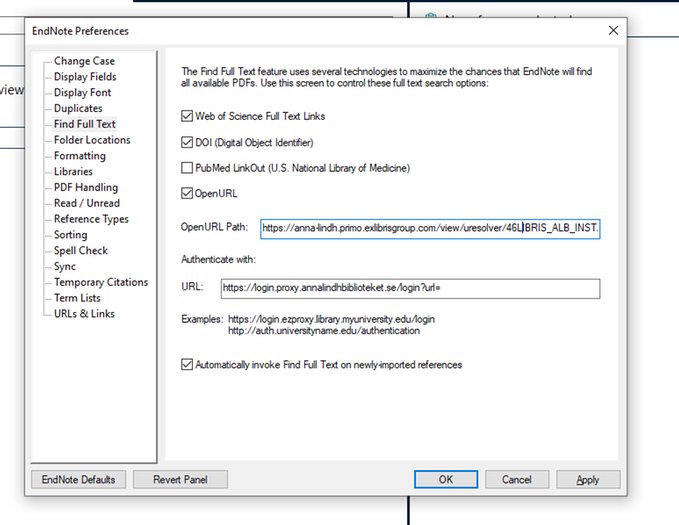
In order for Endnote to be able to access and download full texts to resources that the Anna Lindb Library has subscribed to, you need to make a few settings. See picture below.
- Go to Edit > Preferences > Find full text
- In the OpenURL Path field type: https://anna-lindh.primo.exlibrisgroup.com/view/uresolver/46LIBRIS_ALB_INST/openurl?
- In the URL field, type: https://login.proxy.annalindhbiblioteket.se/login?url=
- Click Ok.

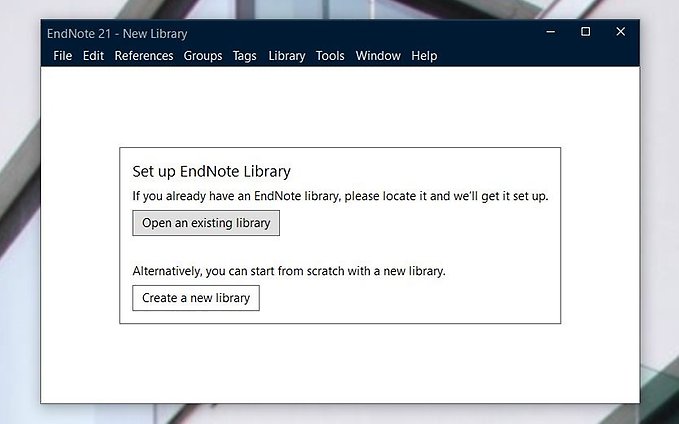
When you open EndNote for the first time, you will be prompted to create a library. A library is a collection of references and associated PDF files. Follow these steps:
- Select "Create New Library".
- Choose a location on your computer where you want to save your library files. It is a good idea to create a special folder for your EndNote library files.
Hint:
- Only work with one library to avoid complications or corrupt files.
- Libraries can be synced and backed up to the cloud using EndNote's "sync" function (more on this below).
- Do not store your library on cloud services or USB sticks or the like.
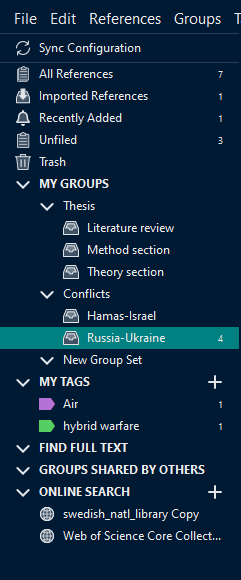
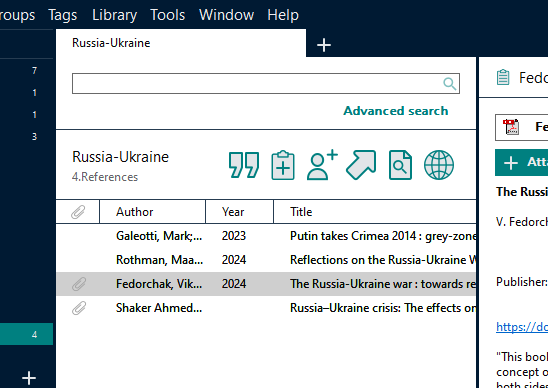
EndNote is structured in three main areas (see figure):
1. Navigation bar (left side): This is where you filter, manage and organize your references. Use the "Groups" feature to create folders for different projects or topics, and consider creating subgroups for better organization. You can also see all the "tags" that you have created and attached to references. You can also access "shared groups", collections of references that are shared by multiple users. You can also access and search journal databases under "online search".
2. Reference overview (middle section): Gives you an overview of your references that are part of groups, tags or that are not sorted. Use the search bar at the top to search for specific references. Here you will also find buttons for cutting and inserting a reference in a document, adding new references, sharing groups, exporting libraries and online search of reference-associated PDF files.
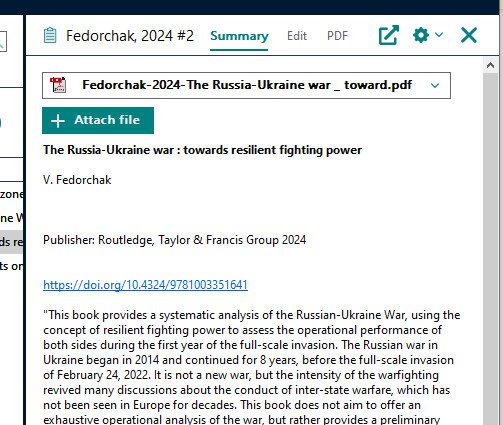
3. Reference Summary (Right Side): View details about the selected reference, including the title, summary, and links to PDFs. You can also edit reference information here by selecting the "edit" tab.
To be able to use EndNote, you need to add references to your library. There are four main methods for importing references to EndNote:
1. By exporting from different databases: In most databases, you can select references and export them directly to EndNote.
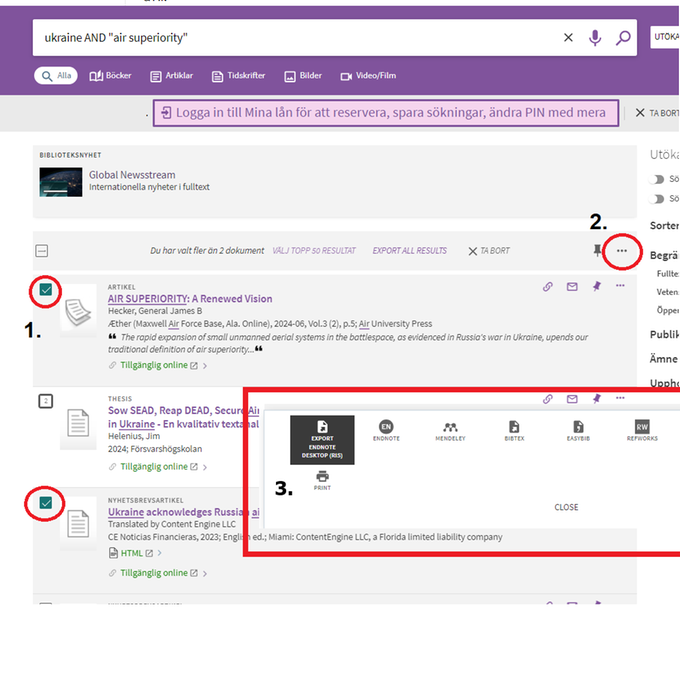
In the Anna Lindh Library's catalogue (Primo), for example, you can select one or more references and then click on the three dots at the top of the list of search results and select "Export EndNote Desktop (RIS)". This will download a file containing the selected references, when it is opened, these should be imported into EndNote automatically.
2. Import PDFs: References to academic books and articles can be created by importing PDF files. Go to "File" -> "Import" -> "File" (for single PDF files) or "Folder" (for multiple PDF files). This works for most books and articles that contain DOI links (e.g., dx.doi.org/ 10.4324/9781003351641).
If the PDF file does not contain a DOI, Endnote will create an empty reference that only contains the PDF filename's file name in the title field. The PDF file will be attached to this blank reference.
Hint:
You can make blank references complete by editing the reference and adding a DOI link in the corresponding field. After editing, right-click on the reference and select "Find Reference Update". EndNote will now add the missing information to the reference.
3. Create references manually: If you cannot find a reference in a database or through PDF import, you can create it manually in EndNote. Go to 'References -> 'New Reference'. Select the corresponding reference type and fill in the required information. You can also attach a PDF file to your reference by selecting the PDF tab. When everything is ready, tap "Save" and then close the window.
Hint:
Manually create references to store and reference interviews or other unpublished content.
4. Search databases via EndNote's "Online Search": Searches can be made from EndNote and references can be added by selecting relevant references and pressing the plus icon. However, the search capabilities and databases are limited. Therefore, this option is most suitable for basic lookup searches.
"Find Full Text" is a feature in EndNote that is used to find and attach PDF files with full text for references. This is dependent on EndNote being connected to the Anna Lindh Library's subscription access to academic databases, books and journals.
To set up Find Full Text, enter references via "Edit" -> "Preferences" -> "Find Full Text", then add the following information:
- Open URL Path: https://anna-lindh.primo.exlibrisgroup.com/view/uresolver/46LIBRIS_ALB_INST/openurl?
- URL: https://login.proxy.annalindhbiblioteket.se/login?url=
By checking the box "automatically invoke find full text on newly-imported references", EndNote will try to find a PDF with full text and attach it to all imported references.
Additional Guides
This guide is intended to help you get started with EndNote 21. If you want to learn more, you can visit the more detailed guides listed below.