
Guide to Zotero
Zotero is a free reference management program that is easy to get started with. It works for Mac, Windows, and Linux using Chrome, Edge, Firefox, and Safari browsers. You can use it in conjunction with various word processors, such as Word, LibreOffice, and Google Docs.

Zotero consists of different parts, a program that is downloaded to your computer (zotero software) and a plugin (zotero connector) to the browser you are using. You save references to the program directly in the browser via a button. Below is a guide on how to get started and use Zotero.
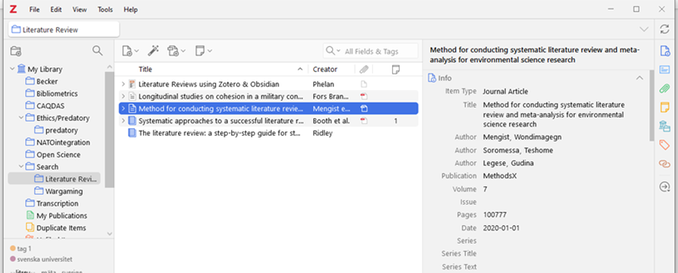
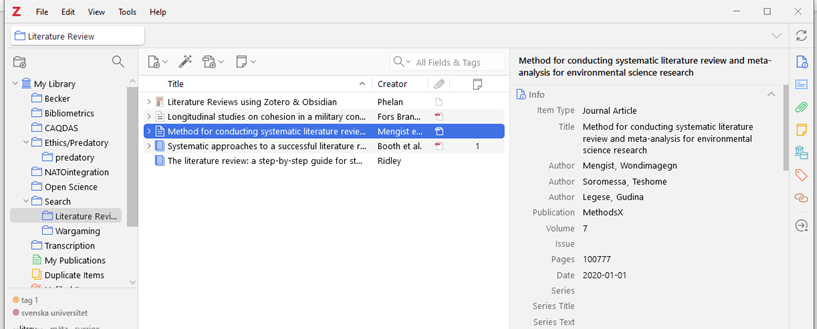
Zotero is structured in three different fields, on the left you will see folders with sorted references and shared libraries, in the middle you will see references with author name and title and on the right you will see a field with information about selected references. This information can be edited if necessary.
In order to insert zotero references in Word, a new tab needs to appear in Word after installation.
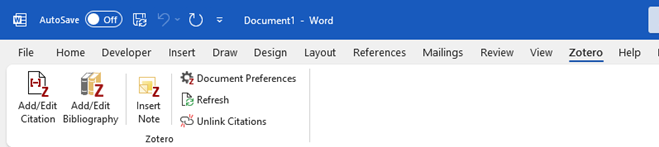
If the tab is missing, you can add it manually via Zotero:
Edit - Preferences - Cite - Word processors - Install Microsoft Word Add-in.
Close both Zotero and Word. When you reopen, Zotero should be visible. Sometimes you also need to click that macros should be allowed when you open Word for the tab to be visible.
References can be added to Zotero either directly from your browser or through the program itself.
To save references via the web: click on the browser extension symbol. The icon changes depending on what kind of reference you have searched for, e.g. an image of a document or a folder. When you hover your mouse cursor over the symbol in the panel of your browser, it says Save to Zotero.
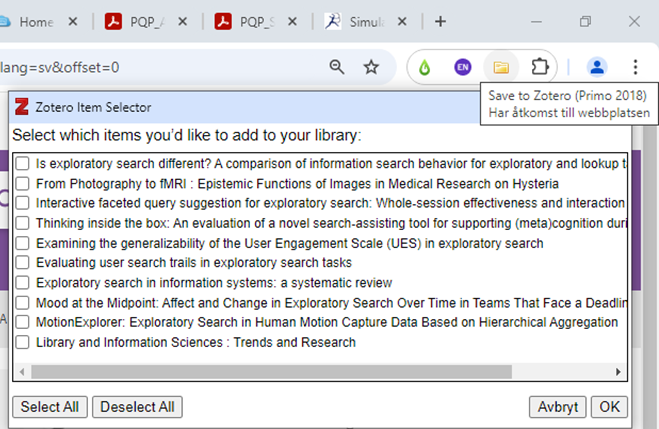
Tip: You can easily save all references for entire hit lists with Zotero. For example, if you search in primo. Then a folder icon will appear and if you click on it, you will be able to choose which references you want to save.
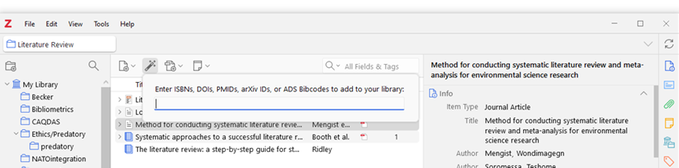
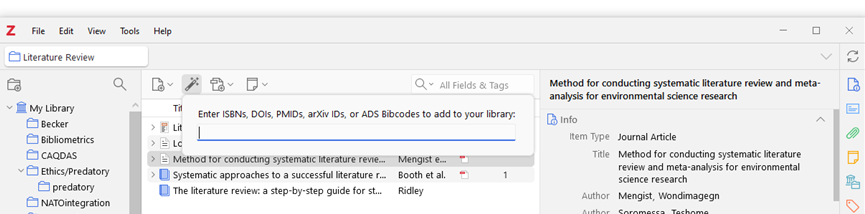
Add references with identifiers: You can easily add a reference using its ISBN, DOI, or PMID. In Zotero click on the "wand". Type in the identifier and hit enter.
Import references from PDF: by adding a PDF file of a scientific article or book, references can be created automatically. This works less well for reports or other material that does not have a DOI or ISBN.
Go to File – add attachment – add file and select your file or files.
Create references manually: This may be appropriate if you have a report, writing, interview, or other material that there is no metadata available to create a reference from.
Go to File – new item, select the correct publication type, and fill in the details (title, author, year, etc.).
You can then right-click on the reference and select add attachment to add an associated full text/PDF.
Tip: you should always check the data downloaded to your Zotero library. The accuracy of the transmission depends on the source. For example, reports do not always get the right information, but scientific books and articles are usually entered correctly. Sometimes you may need to edit and add/remove the information that is automatically transferred. You do this by going to the reference in your Zotero library and clicking on the information you want to change.
Open a Word document and go to the Zotero tab.
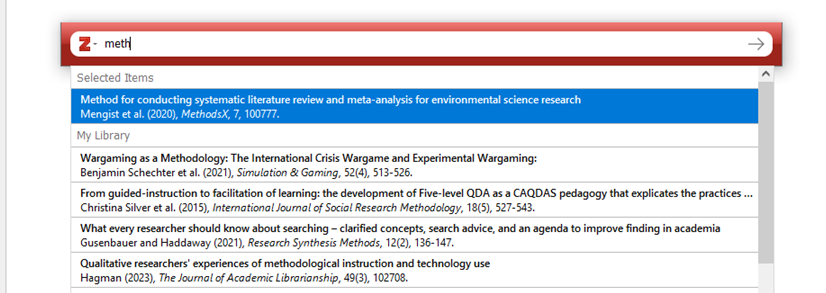
To add a reference: Select add citation to insert the reference into the text. You are now asked to search for the reference from your library. Select one or more and then press enter to insert.
The first time you do this in a document, you will be asked to select the referencing style and language. Which affects the design of your references. Can be changed later via document preferences.
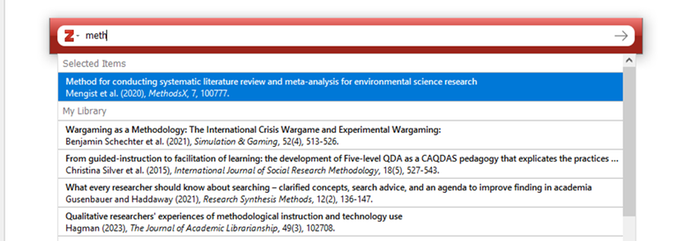
To add a reference list: Select add bibliography
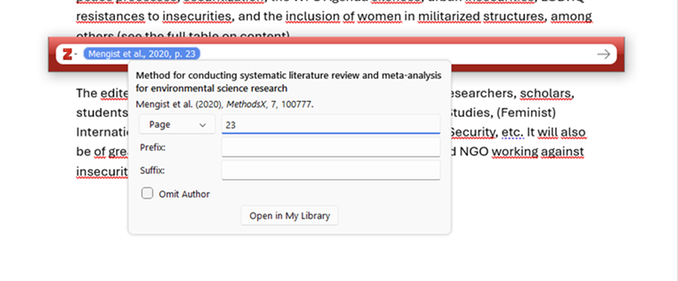
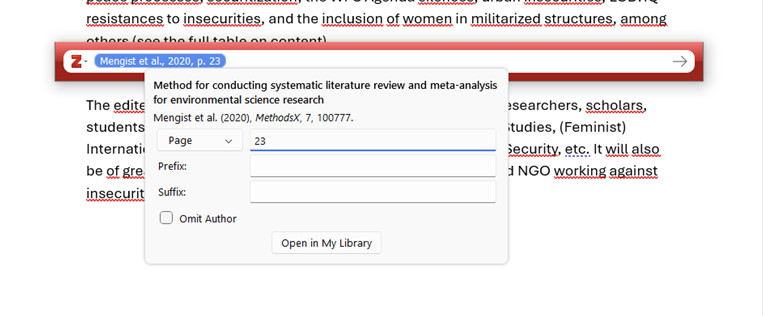
To add page data: select the reference you want to add page data to. Press "add/edit citation" and press the reference in the box that appears and you will get additional options. Enter "pages".
By creating an account in Zotero, you get the opportunity to back up your files, sync between devices and platforms, and share credentials with other people. Perfect for collaborations and group assignments!
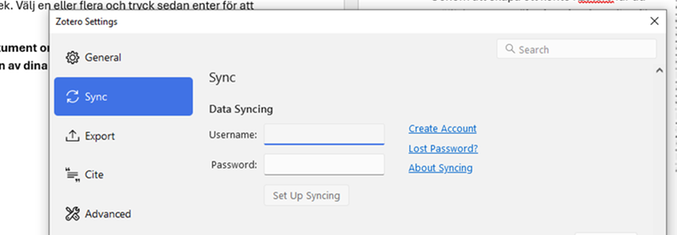
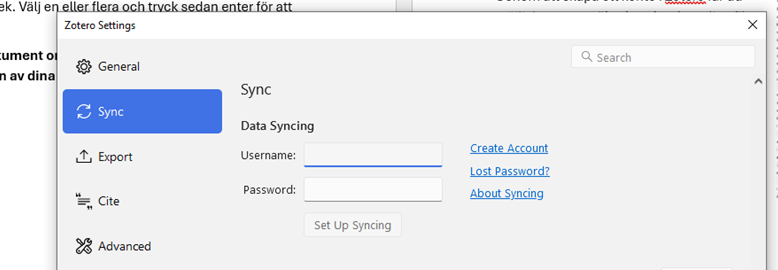
In Zotero go to Edit - Preferences - Sync - Fill in username and password - Set up syncing.
If you do not have an account before, follow the link create account.
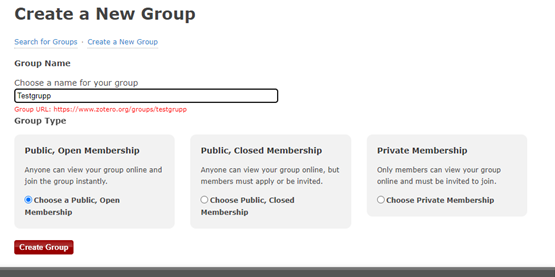
Share References: To share a folder of references, you need to create a group. Edit – New Library – New Group. You will then be able to choose a name and assign rights to the group's members via zotero.org.
To sync your library, click the view button in the top right corner. Then the group library will appear among your other folders. Then it's just a matter of filling in with references.
Members of the group are invited under groups through your account on zotero.org
Additional Guides
More information and a complete picture of the program's features can be found on Zotero's own website.